Measure angles with your iPhone: level, corners, ruler
Hanging a picture straight, checking that a shelf does not lean, or finding out whether a corner is 90° before you cut a baseboard. Your iPhone covers most of that: it already has a level, and what the level cannot see has a fix.
1. The level it already has: Measure
- Open the Measure app (it is in the Utilities folder).
- Tap Level and hold your iPhone against the object, a picture frame for example.
- To make it level, rotate the object and the iPhone until you see green.
- To match a slope, tap the screen while the iPhone rests on the first object: that captures its slope. Hold it against the second one and rotate both until the screen turns green. Tap again to reset.
Apple warns that the measurements are approximate. For a picture or a shelf, that is plenty.
2. What a level cannot measure
A level measures against gravity: it tells you how far something is from horizontal. That is why it cannot see the corner between two walls: both are vertical, so to a level they look the same, whether they meet at 90° or 93°. The same goes for a door frame, or the side of a cabinet against a wall.
Without any app, the old trick is 3-4-5: from the corner, mark 3 ft on one wall and 4 ft on the other. If the distance between the marks is exactly 5 ft, the corner is square. More than that and it is open; less and it is closed. It tells you whether it is square, not how many degrees it is.
3. With Diedro: the corner, on any iPhone
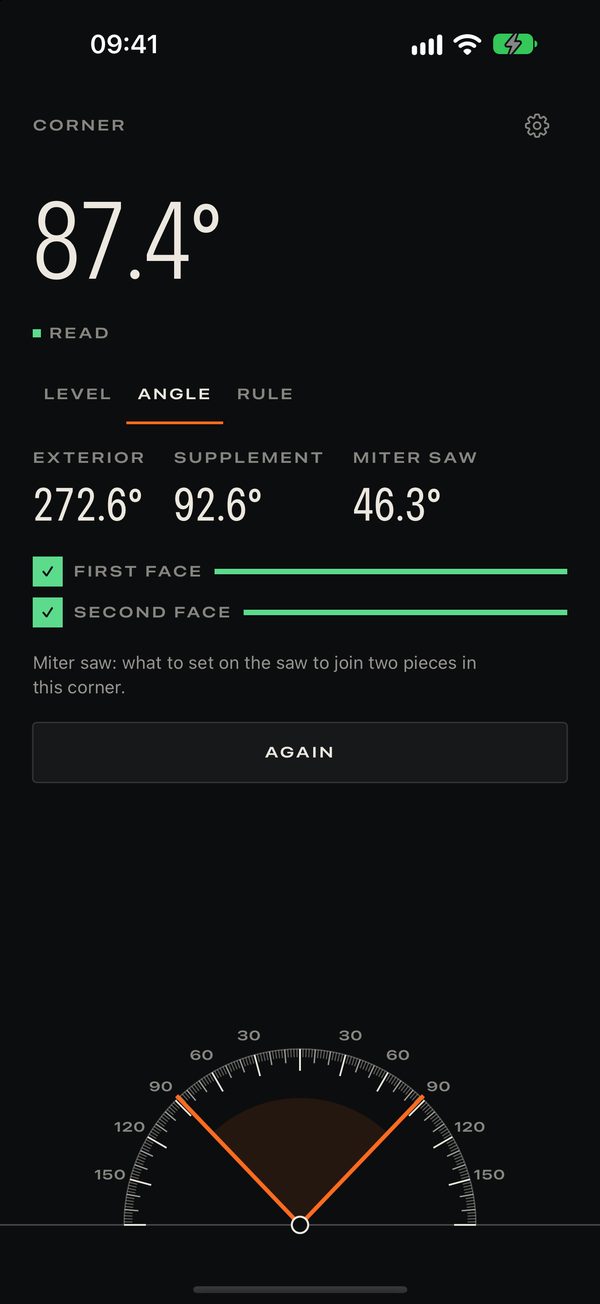
Diedro is an app I made for this. Its Angle tab measures a corner from two rests: rest the back of the iPhone on one face, then on the other, and the turn between the two rests is the corner. It does not depend on gravity, so it works for two walls, a floor and a wall, or the bevel of a blade.
You get the interior angle, the exterior, the supplement and the miter saw setting that joins two pieces in that corner.
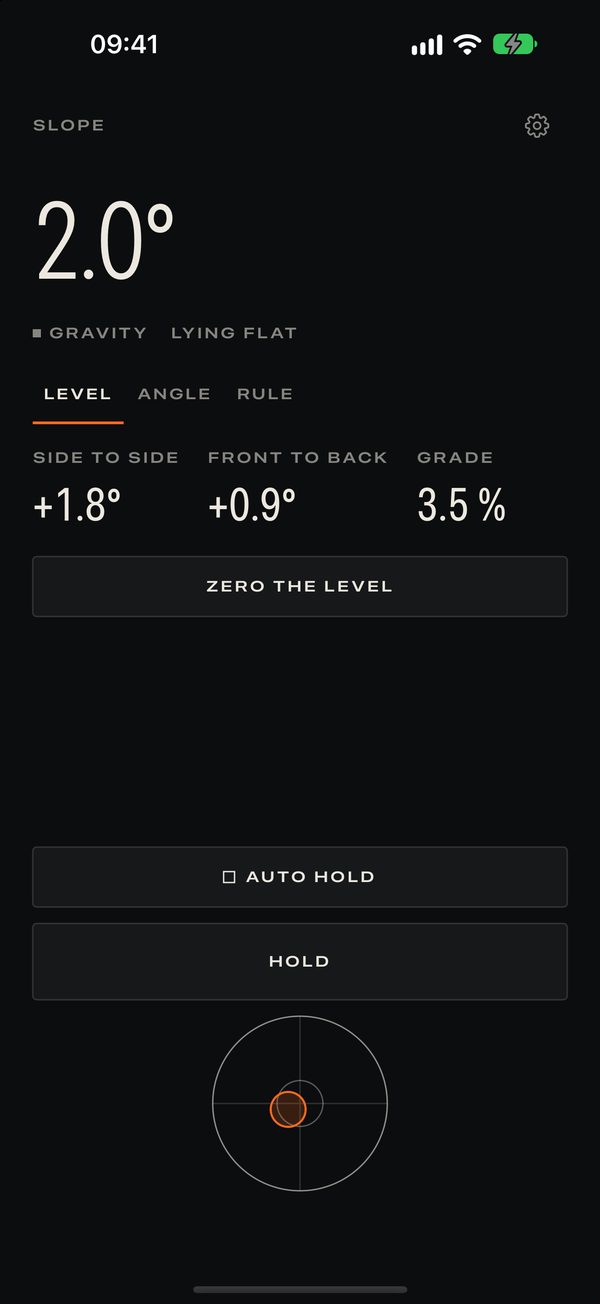
Its Level also improves on the built-in one in two ways: it shows degrees and percent of slope, and it zeroes in two positions, like a real level, so you can calibrate it properly even on a table that is not level.
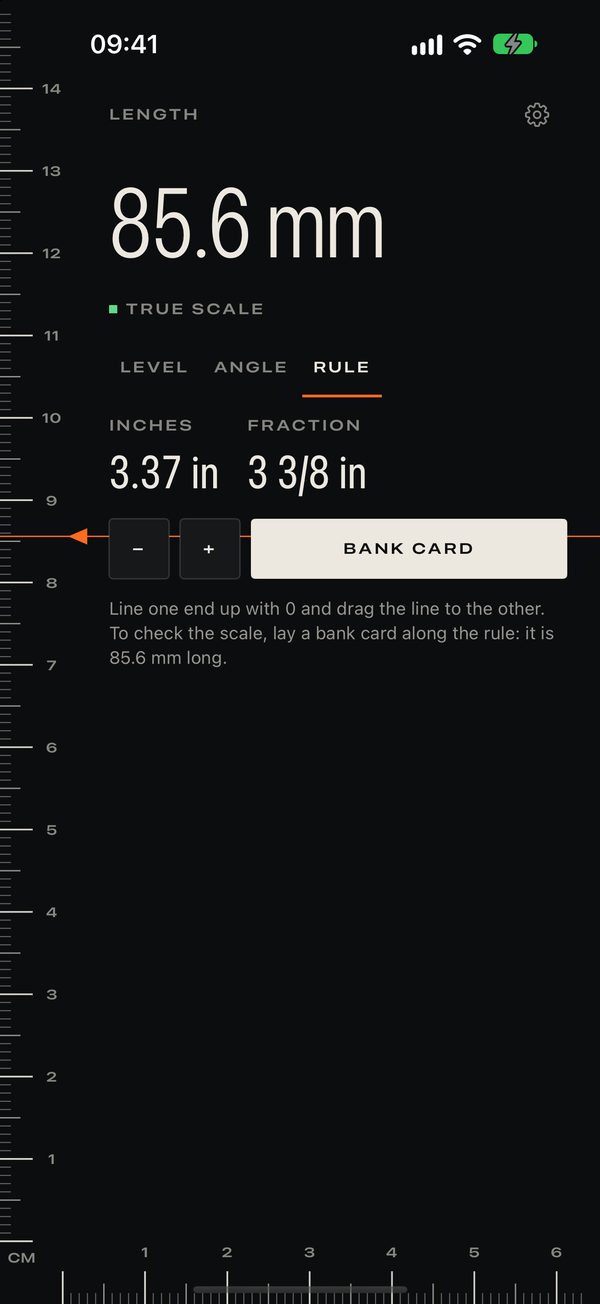
And the Rule is true to scale, in millimeters or inches. To trust it, check it against a bank card: the long side is 85.6 mm.
4. On iPhone Duo, the hinge is the protractor
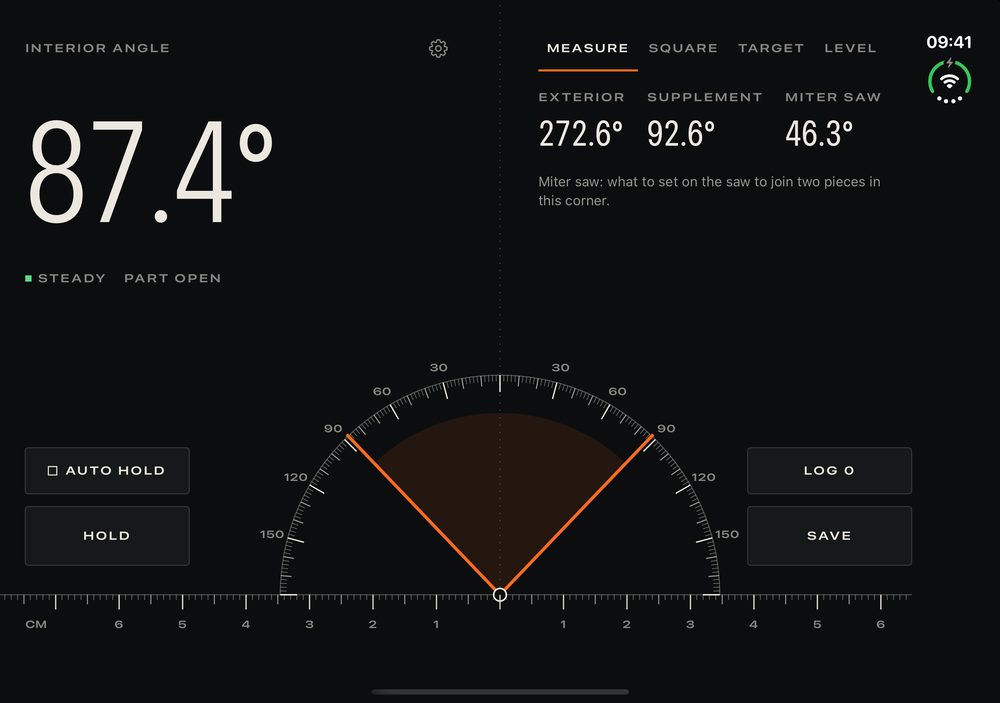
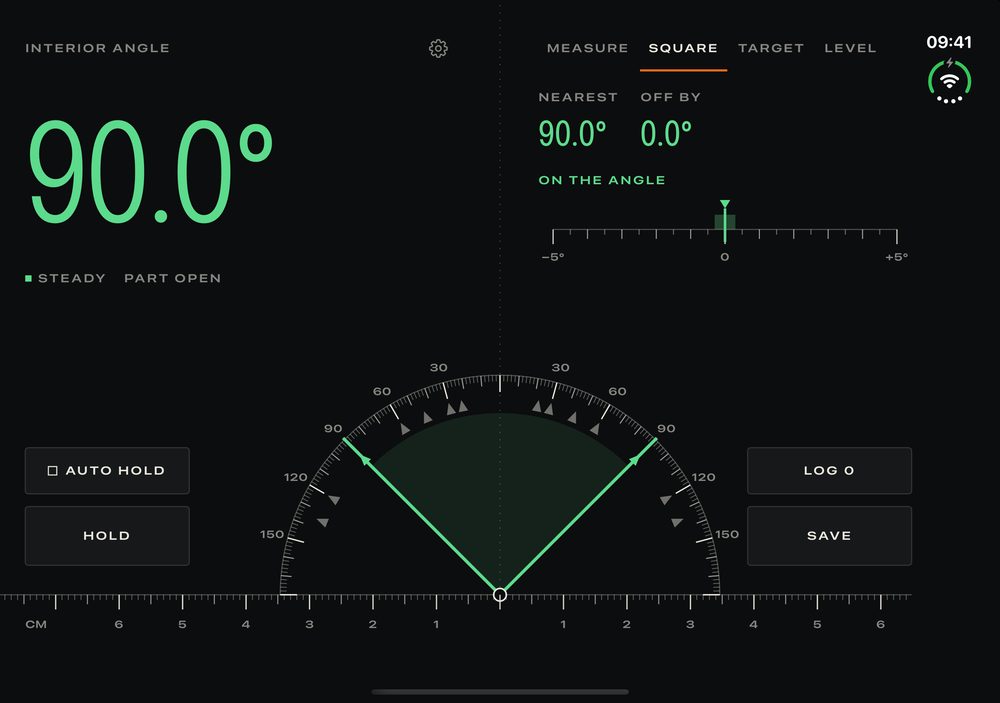
On iPhone Duo, the first foldable iPhone, Diedro reads the angle of the hinge itself: open the phone against a corner, and the angle between its two halves is the measurement.
- Measure: the interior angle, with its exterior, supplement and miter saw setting.
- Square: color and a tap tell you when you reach 90°, 45° and the usual workshop angles.
- Target: pick an angle and be guided to it, how far and which way. Use it to copy an angle from one place to another.
- Two-plane level: one half rests on the base and the other rises against the slope, and you read both at once.
- A ruler whose zero is the fold.
On any iPhone that is not a Duo, Diedro is free with nothing locked. On the Duo, the live angle, the level and the ruler are free too; Diedro Pro unlocks the workshop tools (Hold, the Log, Square, Target, the two-plane level, calibration and the reading on the cover display) for $29.99 once or $7.99 a month, US App Store prices on October 23, 2026. No ads, no account.
Diedro shows the resolution the sensor really delivers, with no decorative decimals. It is a handy instrument, not a certified one: if a measurement matters, check it against a tool you trust.