How to free up iPhone storage by deleting videos
When an iPhone says it is out of storage, the first thing most of us look at is photos. But the culprit is usually video: a single minute shot in 4K at 60 fps takes about 400 MB, according to the iPhone itself in Settings › Camera › Record Video. A three-minute concert clip outweighs hundreds of photos.
The good news is that deleting a handful of videos gets you gigabytes back. Here is how to find them, delete them for real, and keep it from happening again.
1. See how much space Photos takes
Go to Settings › General › iPhone Storage. The bar at the top shows what is using space, and below it your apps are sorted by size. If Photos is near the top, read on. Tap Show All under the recommendations: sometimes iOS already suggests what to review.
2. Find the videos
In the Photos app, go to Collections › Media Types › Videos. That is every video, with no photos in between. Two places that tend to hide gigabytes:
- Screen Recordings: it is easy to forget how long they run.
- Slo-mo: more frames per second means bigger files.
Photos does not sort by size, but the duration on each thumbnail is a good hint: at the same quality, longer means heavier. To see a video’s exact size, open it and swipe up.
3. Delete them… and empty Recently Deleted
Deleting a video does not free any space yet: it goes to the Recently Deleted album, where iOS keeps it for 30 days in case you change your mind. To get the space back now, in Photos go to Collections › Recently Deleted (under Utilities), unlock it with Face ID, tap Select, and delete what you do not want.
Careful if you use iCloud Photos: deleting a video on your iPhone also deletes it on your other devices and in iCloud. If you want to keep it, copy it to a computer or a drive first.
If you have room in iCloud and would rather not delete anything, turn on Settings › Photos › Optimize iPhone Storage: the iPhone keeps smaller versions and leaves the originals in iCloud.
4. Keep it from happening again
- In Settings › Camera › Record Video, pick 1080p at 30 fps for everyday clips. The iPhone itself estimates about 60 MB a minute, against ~400 MB for 4K at 60 fps. Save 4K for what really deserves it.
- In Settings › Camera › Formats, keep High Efficiency: the same video takes noticeably less space.
The shortcut: Limina
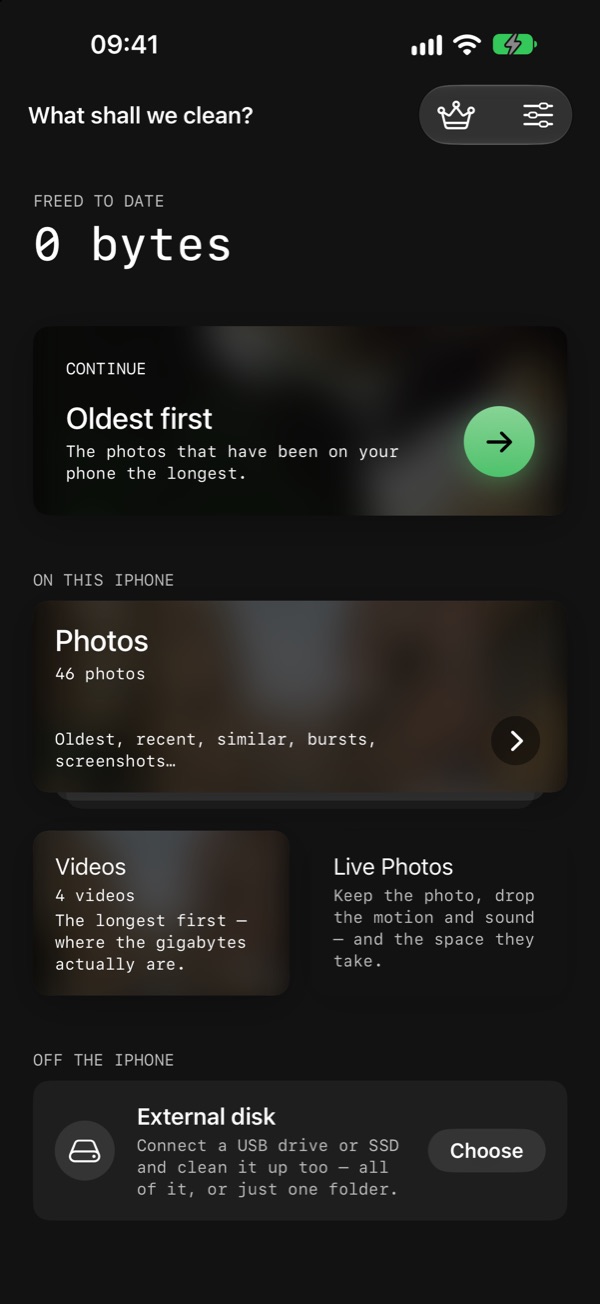
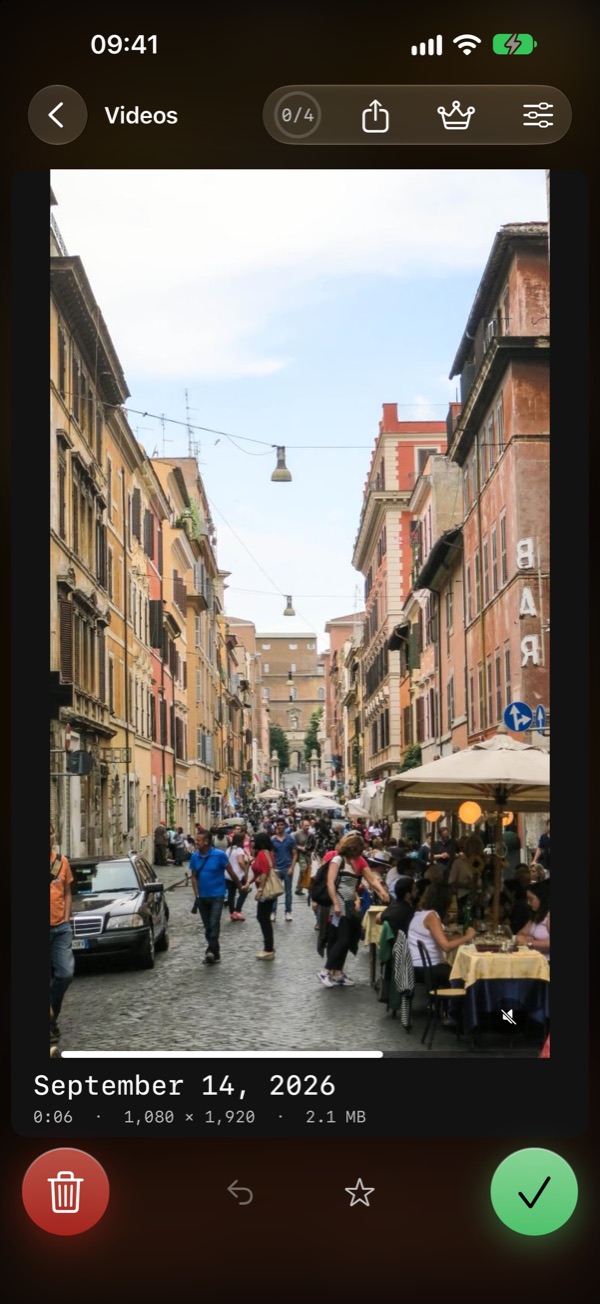
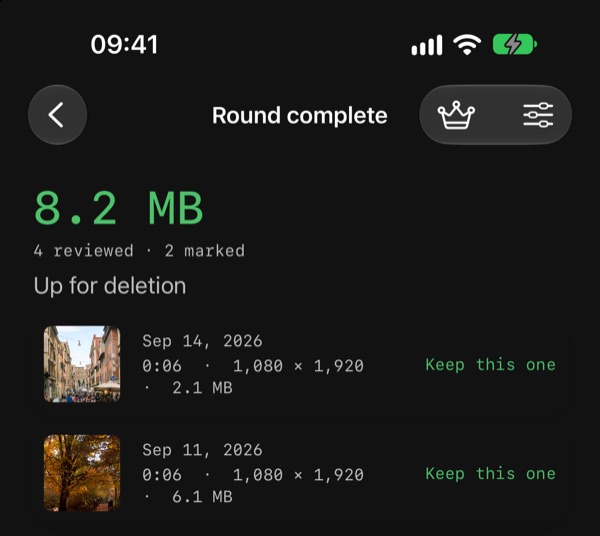
Doing all this by hand works, but it is slow. Limina is an app I made for exactly this: it shows you your library one item at a time and you swipe to keep or delete. Its Videos mode starts with the longest ones, which is where the gigabytes really are, and when you finish it tells you how much you are about to free. Everything deleted goes to Recently Deleted, so there is always a way back.
It all happens on your iPhone: no account, nothing uploaded anywhere, and no ads. Reviewing photos is free every day; Videos mode is part of Limina Pro.