How to delete duplicate and similar photos on iPhone
Not all the “duplicates” in your camera roll are the same, and each kind is cleaned up differently:
- Copies: the same photo or video saved twice, for example when you import it or it gets forwarded back to you.
- Bursts: the dozens of photos the camera fires off in one go.
- Similar photos: the five tries it takes by hand to get the group shot right.
Photos handles the first two well. The third, not at all.
1. Copies: the Duplicates collection
In the Photos app, go to Collections › Utilities › Duplicates. Each set of copies appears together. Tap Merge on a set, then Merge [number] Items.
According to Apple, merging keeps the highest-quality version, with the data from all the copies, and moves the rest to Recently Deleted. If you have no copies, the Duplicates collection does not even appear.
2. Bursts: keep only the good ones
Bursts live in Collections › Media Types › Bursts. Open one and tap Burst ([number]). Gray dots below the thumbnails mark the photos iOS suggests keeping. Tap the circle on each photo you want to keep, then Done.
iOS then asks what to do with the rest: choose Keep Only [number] Favorites and the others go to Recently Deleted. A thirty-photo burst comes down to two or three.
3. Similar photos: by hand
If they are not exact copies or a burst, Photos does not group them: to the app they are different photos, even if you took them in the same second. You have to go one by one: open them, swipe between them, heart the one worth keeping, then use Select to delete the rest.
It is the most common case and the slowest, because you also have to find them among thousands of photos.
4. Do not forget Recently Deleted
None of the above frees any space yet: everything goes to Recently Deleted, where iOS keeps it for 30 days. To get the space back now, go to Collections › Recently Deleted (under Utilities), unlock it with Face ID, tap Select, and delete what you do not want.
Careful if you use iCloud Photos: what you delete on your iPhone is also deleted on your other devices and in iCloud.
The shortcut: Limina
Limina is an app I made for cleaning up your library with a swipe. For duplicates it has two modes:
- Bursts (free): it shows you each camera burst whole, with the photo Limina recommends marked with a star. Tap Keep this one on the ones you want and the rest are marked for deletion in one tap. If you want them all, Keep the whole burst.
- Similar (Limina Pro): it finds the near-identical photos you took by hand, the ones from the same second and the same place, and shows them to you just like a burst. That is exactly the case Photos does not cover.
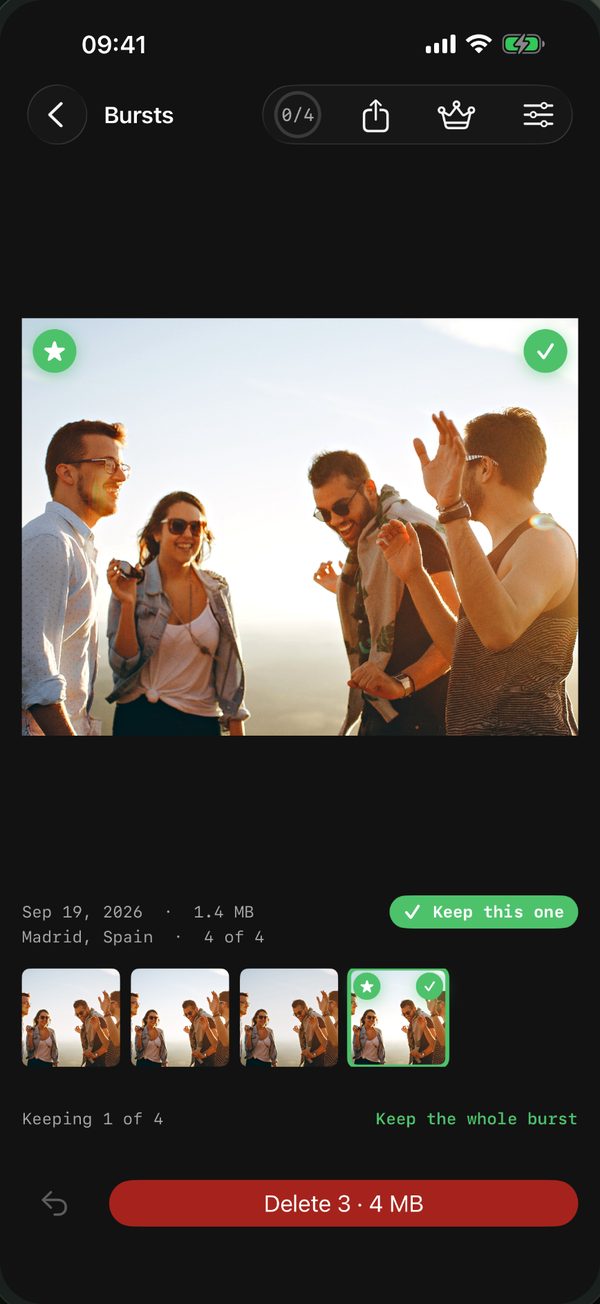
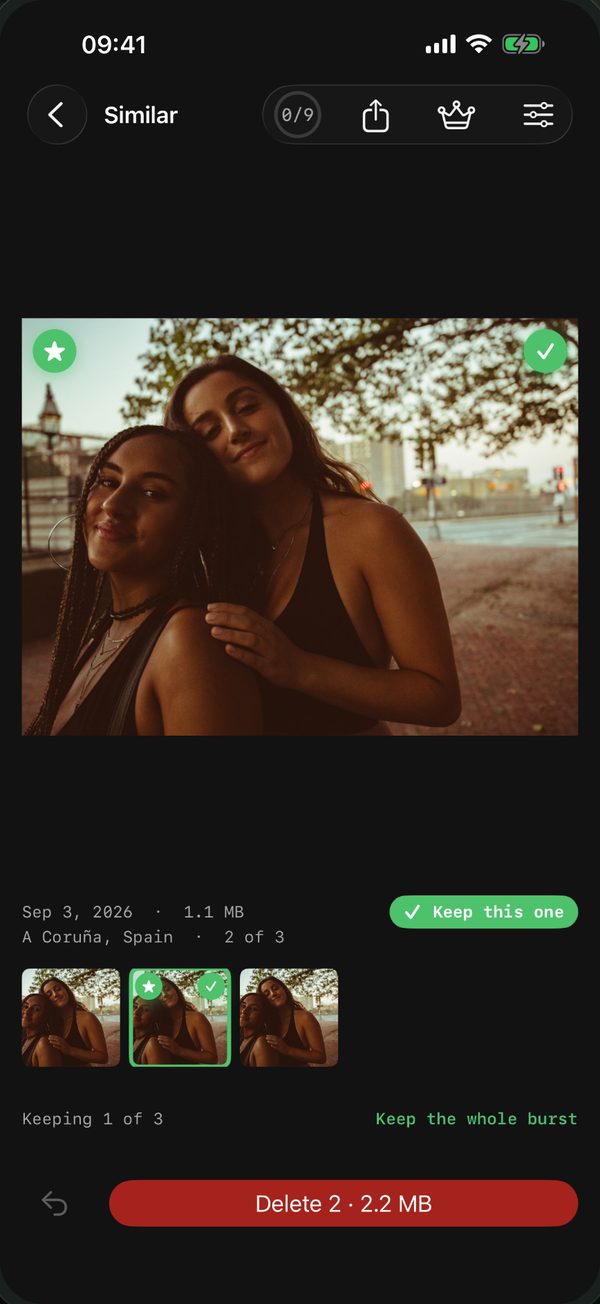
To recommend a photo, Limina works out on the iPhone itself which shot came out best, faces included. At the end of a round it tells you how much space you are about to free, and nothing is deleted until you confirm. Everything deleted goes to Recently Deleted, so there is always a way back.
What Limina does not do is merge exact copies: for that, the Photos Duplicates collection already works well.
It all happens on your iPhone: no account, nothing uploaded anywhere, and no ads.